Tracking
PPE Cleaning, Inspection & Lifecycle Management
When you manage hundreds or thousands of protective items, “where is it and is it safe to wear” shouldn't be a guess. IDS gives every garment an RFID identity and a complete history — contamination events, cleaning method, inspection results, repairs and remaining service life — so you can see the real-time status of your entire fleet and report against it on demand. Decontamination you can prove, audit and report on.
- Item-level RFID identity per garment
- Full lifecycle history: clean, inspect, repair, retire
- Real-time fleet status
- Audit-ready compliance reporting
- Pool-stock and retirement scheduling
Placing a Decontamination / Laundry Request Through the DECON Connect App
This process explains how authorised UK Fire and Rescue Service personnel can use the DECON Connect app to book contaminated PPE and related items into the IDS laundry and decontamination process. The process ensures that each consignment is correctly linked to the firefighter, their Safe Transport Bag, the contamination type, and the appropriate collection and return locations.
Step 1: App Access and User Registration
The DECON Connect app is available to download free of charge from the Apple App Store and Android app stores.
Before a firefighter can access the app, they must be registered as an approved app user within the IDS DECON Connect database. Prior to commencement, IDS will authorise and register all listed UKFRS personnel who require access.
Once registered, the firefighter will be able to open the app and begin the login process.
Step 2: First-Time Login
Step 3: Email Address Verification
After logging in, the email address currently listed in the DECON Connect database will be displayed to the user.
The user will be asked to verify their preferred email address. This email address will be used for all system communications, including updates as their PPE moves through the laundry and decontamination process.
This step is particularly important because many firefighters, especially volunteers, may not regularly use their business-assigned email address. The system therefore allows users to nominate their preferred method of communication to help ensure that important updates are received.
Step 4: Select “Scan Your Gear for Laundry”
Once the user has verified their email address, the main app menu will display.
The user should select the “Scan Your Gear for Laundry” button to begin a laundry booking.
Other menu options may be available depending on UKFRS requirements. These may include:
- Ordering from a catalogue of approved PPE
- Searching for PPE status and location
- Drawing a set from a regional pool
- Asking the laundry a question
- Conducting a routine inspection on PPE elements
In a UKFRS-specific version of the app, each Fire and Rescue Service will be able to select which options are made available to their members.
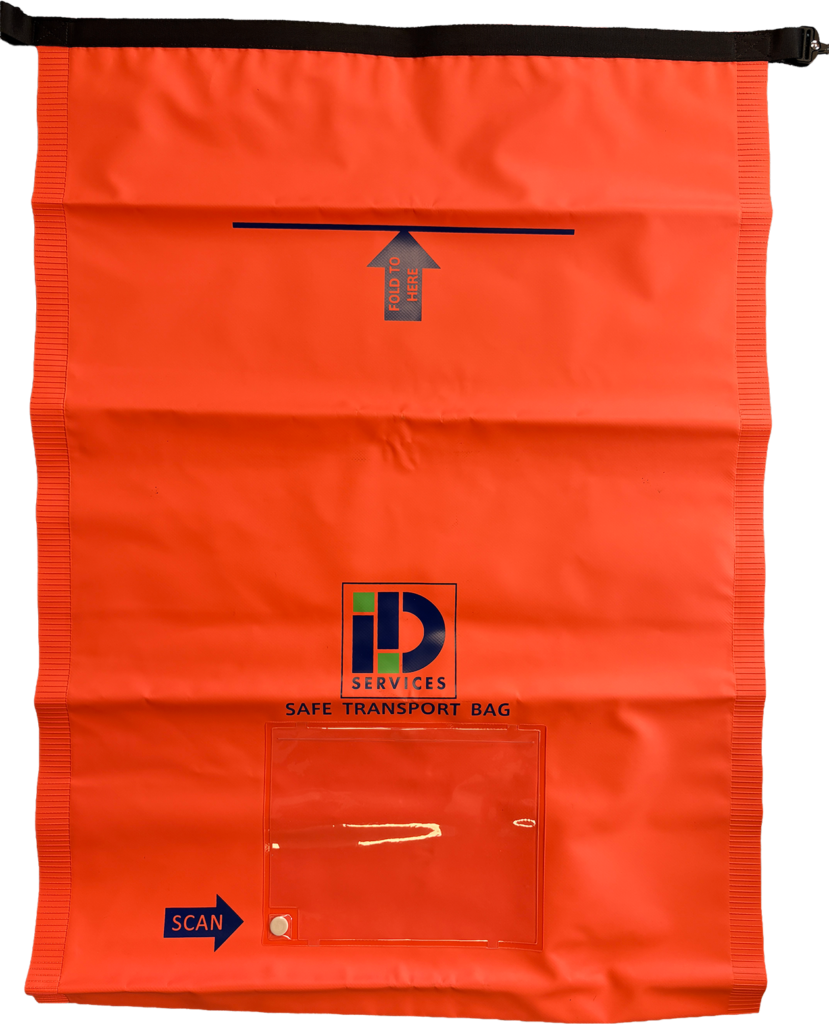
Step 5: Scan the Safe Transport Bag
The user will be asked to select any available Safe Transport Bag from the cache on their vehicle or station.
The user must scan the RFID tag located on the front of the Safe Transport Bag. The RFID tag is clearly identified with an arrow showing “SCAN HERE”.
Scanning the RFID creates a job in the DECON Connect database and links the Safe Transport Bag and consignment to the firefighter. The RFID number becomes the job number for that specific consignment.
The user should then press Continue.
Step 6: Check the Safe Transport Bag Address Card
Before placing any PPE into the Safe Transport Bag, the user must check the laminated address card located in the clear pouch on the front of the bag.
The address card must show the red IDS facility address. The red side indicates that the gear inside the bag is still contaminated.
The Safe Transport Bag and logos will be UKFRS branded.
Where required, the bag may include an internal pouch containing disposable coveralls. These can be worn by the firefighter after removing contaminated PPE, PPC, or other personal clothing. If this option is required, IDS will hold stock of the disposable coveralls and place a replacement coverall into each Safe Transport Bag before it is returned.v
Step 7: Select the Type of Contamination
The user will then be asked to select the type of contamination that the PPE elements and other items have been exposed to.
This will be selected from a drop-down list and may include contamination types such as:
- Asbestos
- Hydrocarbons
- Bodily fluids
- Other listed contaminants
The selected contamination type will be recorded in the DECON Connect database against each element every time it is processed through the IDS facility.
Step 8: Confirm Collection and Return Locations
The user will be asked to confirm the collection and return locations for the consignment.
By default, these will be set as the station assigned to the firefighter in the DECON Connect database.
If the firefighter is working from a different station due to temporary posting or reassignment, they can select an alternative pick-up and/or drop-off location from the drop-down list.
Step 9: Scan PPE Elements and Place Items into the Bag
The user must scan each PPE element and any other relevant PPE items before placing them into the Safe Transport Bag.
Each scanned item will be linked to the job in the DECON Connect database.
Once all PPE elements and items have been scanned and placed into the Safe Transport Bag, the user must close and seal the bag in accordance with the instructions printed on the bag.
Step 10: Complete the Booking